
How to Turn 2D Image into 3D Online? [AI 3D Conversion Guide 2026]
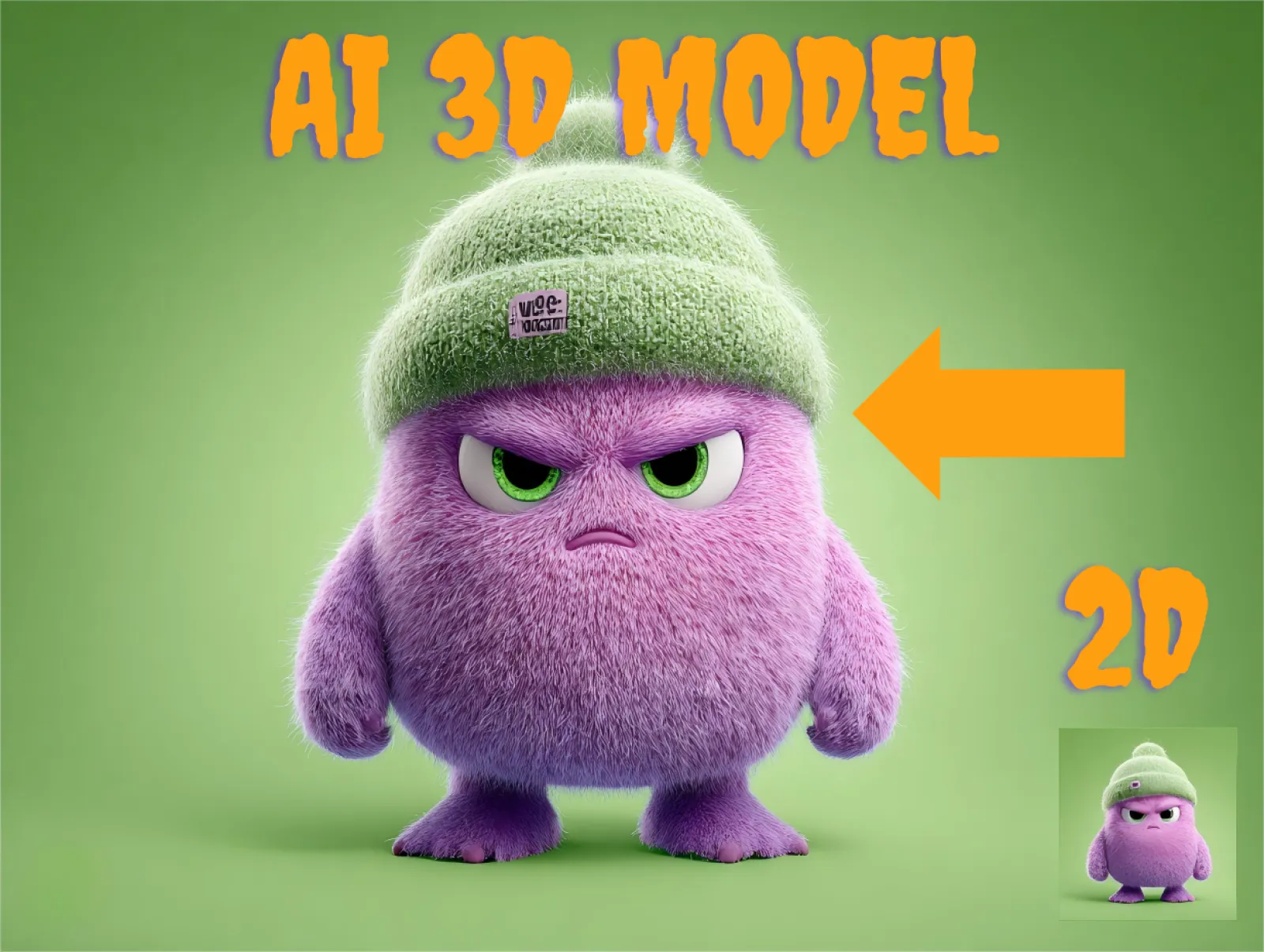
Start with a clear reference image in iMini
A photo that looks like a 3D figurine and a downloadable 3D mesh are different outputs. An image editor can create the first; an image-to-3D workflow can create a draft asset that you can inspect from different angles. Decide which output you need before selecting a tool.
In iMini, use an image model such as Nano Banana for a rendered figurine concept, and the Hunyuan 3D workspace for a mesh draft. The steps below separate these workflows and show how a clean concept image can become a reference for the next stage. Generated assets still need checks before production or printing.
What is AI Image to 3D Conversion?
2D image to 3D model is the process of transforming a flat, two-dimensional image into a realistic, textured 3D model. Instead of manually building shapes and textures in traditional 3D software, AI image to 3D conversion uses artificial intelligence to analyze depth, structure, and texture. The inferred geometry is a draft: a flat reference does not fully specify hidden surfaces, dimensions or construction details. Review those areas rather than assuming the output is an exact reconstruction.
How to Convert 2D Image to 3D Model Online?
Now that you have already known what AI image to 3D conversion is, you might be wondering - how can you actually turn a 2D image into a 3D model online? Which AI tools deliver the best result for realistic 3D generation? Keeping reading on to explore the step-by-step process and AI tools to help you create 3D models yourself.
Popular iMini&Nano Banana 3D Figurine
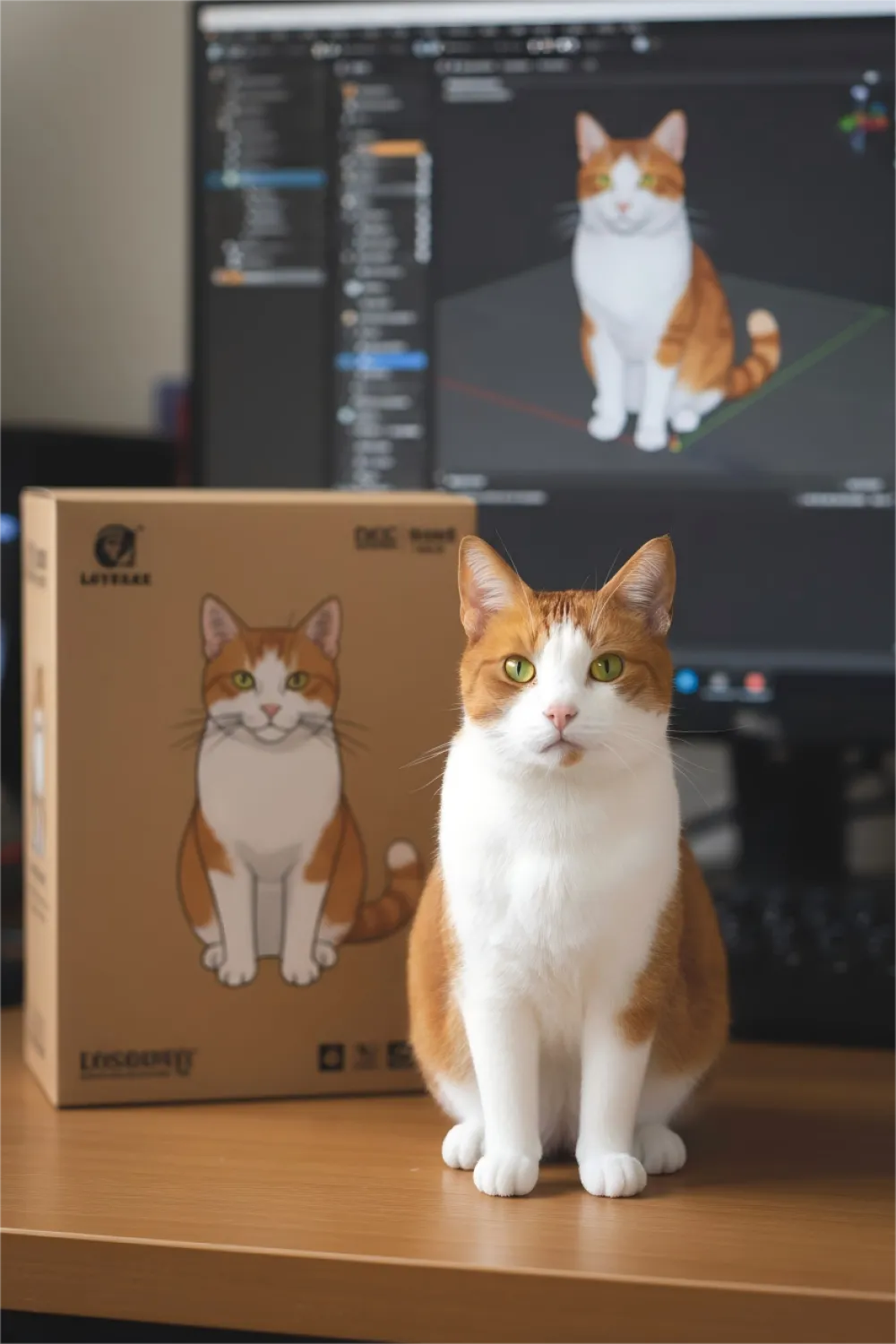
A Nano Banana image-editing workflow can turn a reference photo into a picture of a “3D figurine” that resembles a photographed toy. This is a rendered image, not a mesh conversion. Choose an available image model and check its current reference-image controls.
Describe the appearance you want to retain, then compare the result with the original. Character and scene consistency can vary; no instruction guarantees an identical subject.
Note: Nano Banana only produces 3D images - not native OBJ/GLB meshes, but you can use other tools to convert the result into 3D assets.
Use Nano Banana on iMini AI
1. Navigate to the “AI Image” section and select the “Nano Banana in the image workspace” model.
Select an image model that accepts your reference and supports the edit you need. The available model names and controls can change.
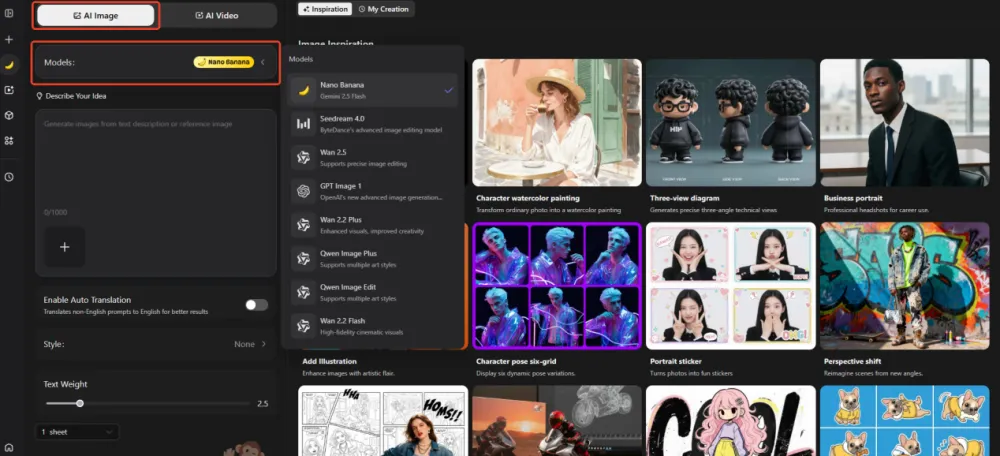
2. Select a preset prompt or enter your own custom prompt to generate 3D figurine.
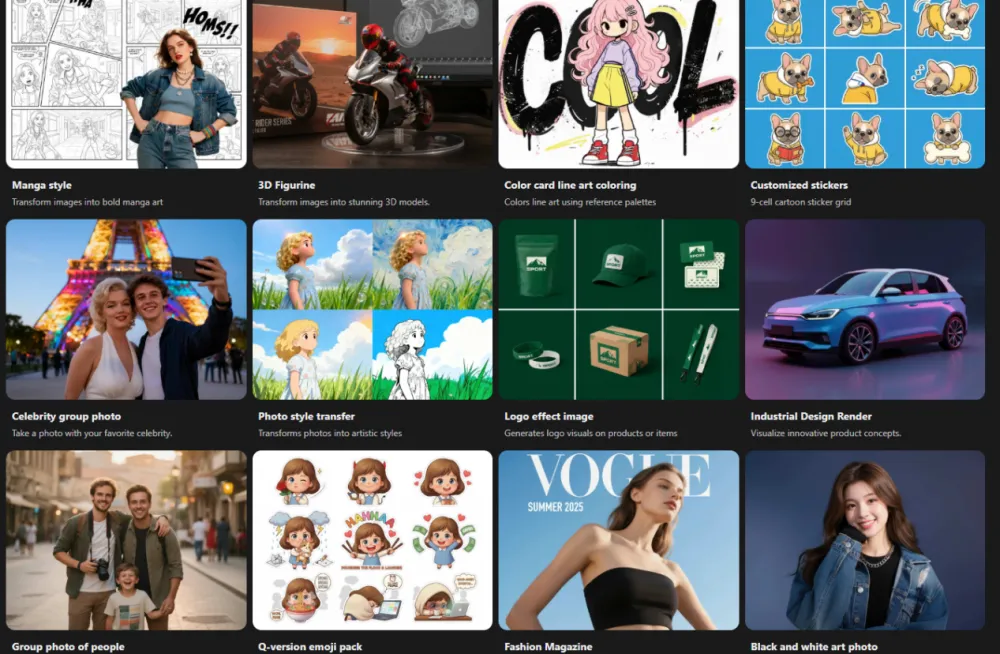
If a suitable figurine template is available, use it as a starting point. Otherwise write the subject, material, pose and scene directly. A template is optional; check that it produces the kind of image you need.
3. Upload your reference images and enter your prompt to guide the AI.
3D Image AI Prompt Recommended: Create a 1/6 scale commercial-style 3D figurine of the character in the uploaded image. The figurine should appear highly realistic and detailed, displayed in front of a computer desktop. Behind it, include a toy package featuring flat, illustrated artwork of the same figurine. On the computer screen, show the 3D modeling process of this figurine in progress. Render the entire scene in a natural, real-world photography style with soft lighting, subtle reflections, and a professional studio feel.
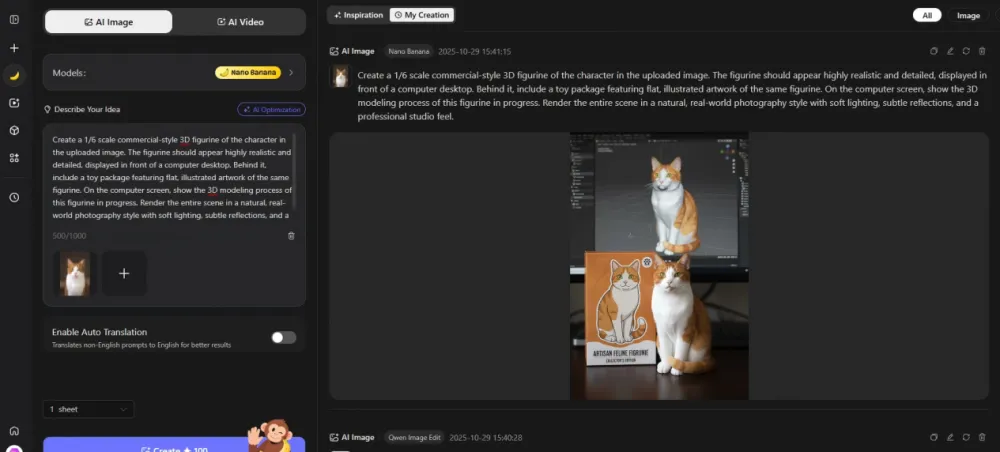
4. Generate the figurine image.
Once your image is uploaded, and the prompt is entered, click on the "Create" button. Wait for the AI to process your image and generate a 3D figurine image in minutes.
5. Refine the figurine image.
If you are not satisfied with the generated 3D figurine, simply adjust your prompt - modify details like pose, background, or lighting and regenerate.
Popular iMini&Hunyuan 2.5 3D Model
Hunyuan 3D 2.5 is an image-to-3D option for creating mesh drafts from a reference. Inspect shape first, then textures and materials. The current iMini workspace determines which inputs, controls and downloads you can actually use; model-family descriptions do not guarantee every integration exposes every feature.
You can easily create 3D models of characters, animals, vehicles, furniture, and human figures with Hunyuan 2.5 3D, making it a powerful tools for 3D artists, designers, and 3D printing enthusiasts seeking efficiency and realism.
Use Hunyuan 2.5 3D on iMini
1. Open the Hunyuan 3D 2.5 model page and follow its link to the current 3D workspace. Select Hunyuan 3D 2.5 if available and upload a complete, clearly lit reference. Use text input or additional views only if the selected workflow exposes those controls.
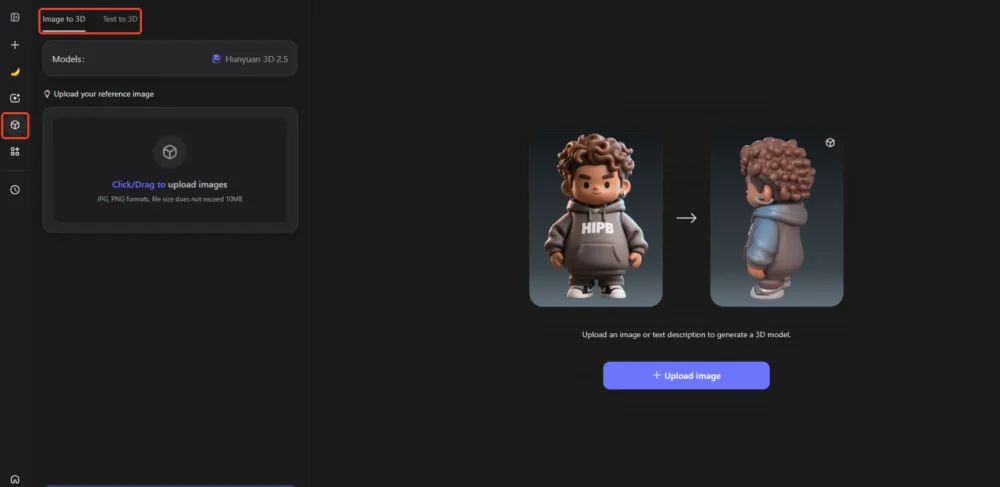
2. Submit the supported reference inputs and follow the workspace status. Processing time varies with the request and service conditions; a fixed completion time is not guaranteed.
3. Preview the generated mesh from all sides, then use a download format actually offered by the workspace and accepted by your target software. Open it to check scale, geometry and materials. Printing also needs manifold and wall-thickness checks; downloading or converting a file does not make it print-ready.
Nano Banana with Hunyuan 3D
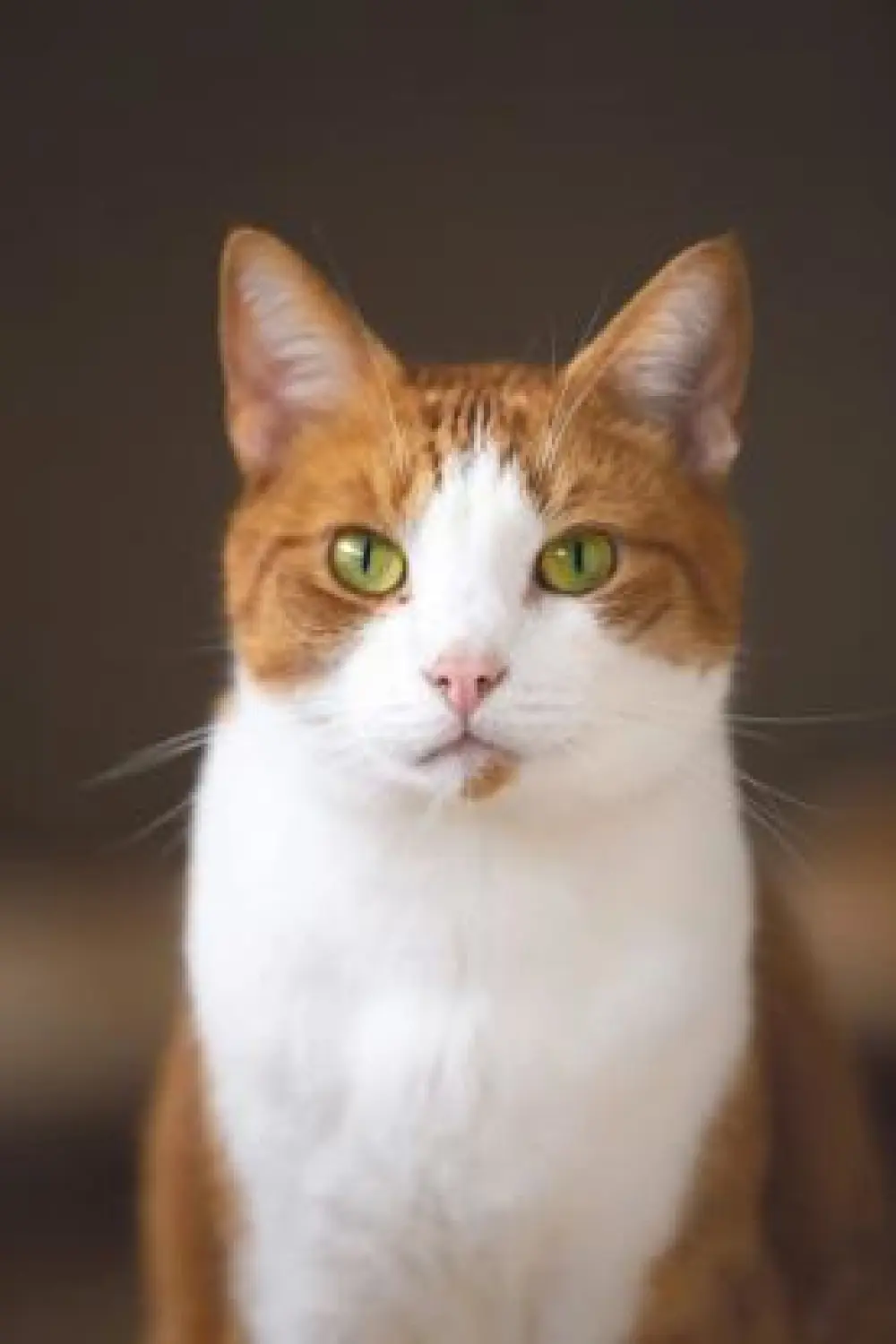
If you use the Hunyuan 3D image-to-3D model, ensure your image meets specific quality requirement for the best results. Check the current upload size and file-type limits in the interface. Use a clear, well-defined subject with minimal background distractions. Avoid images containing text, or overly complex background. Make sure the main subject occupies a large portion of the frame to help AI accurately generate a detailed 3D model.
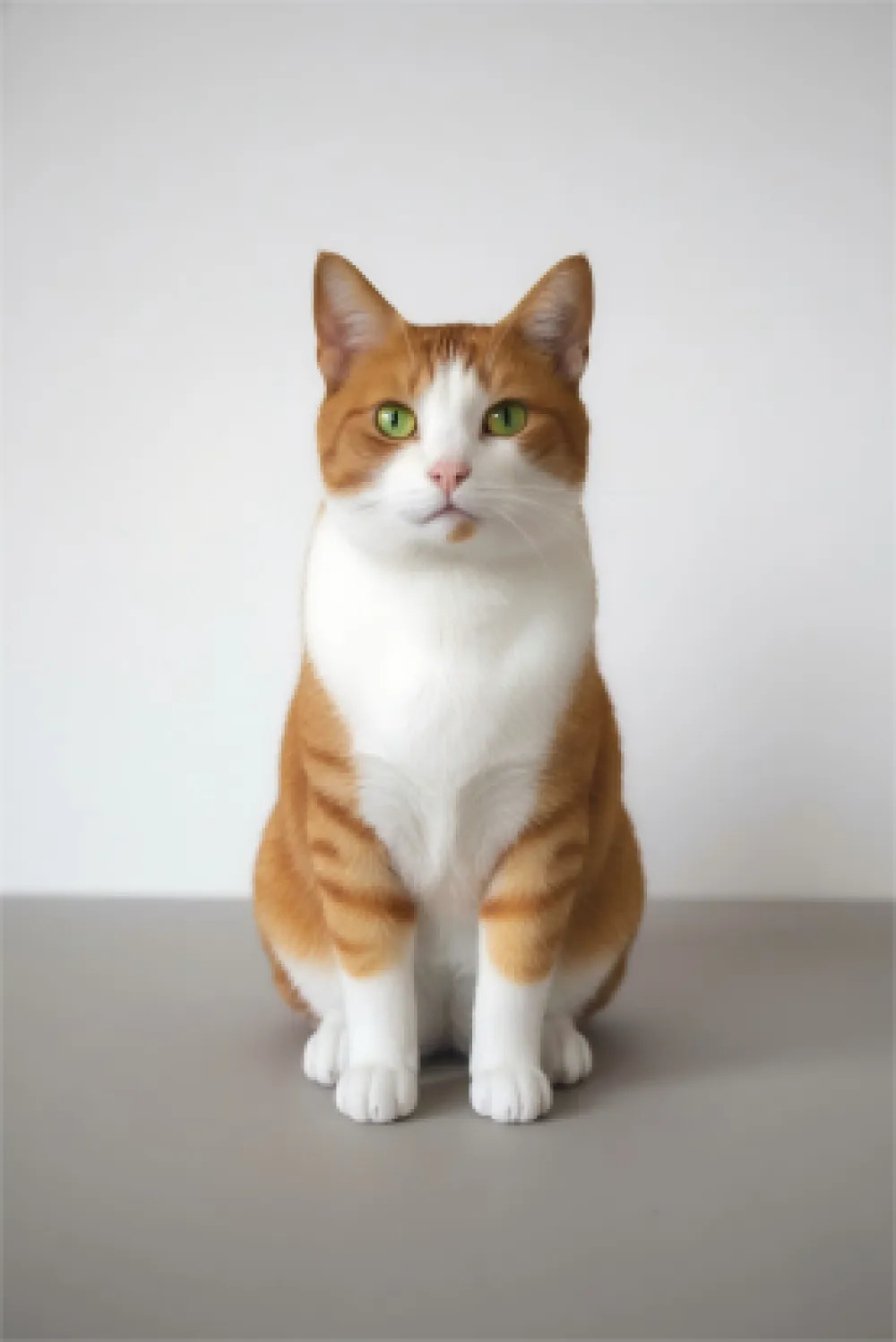
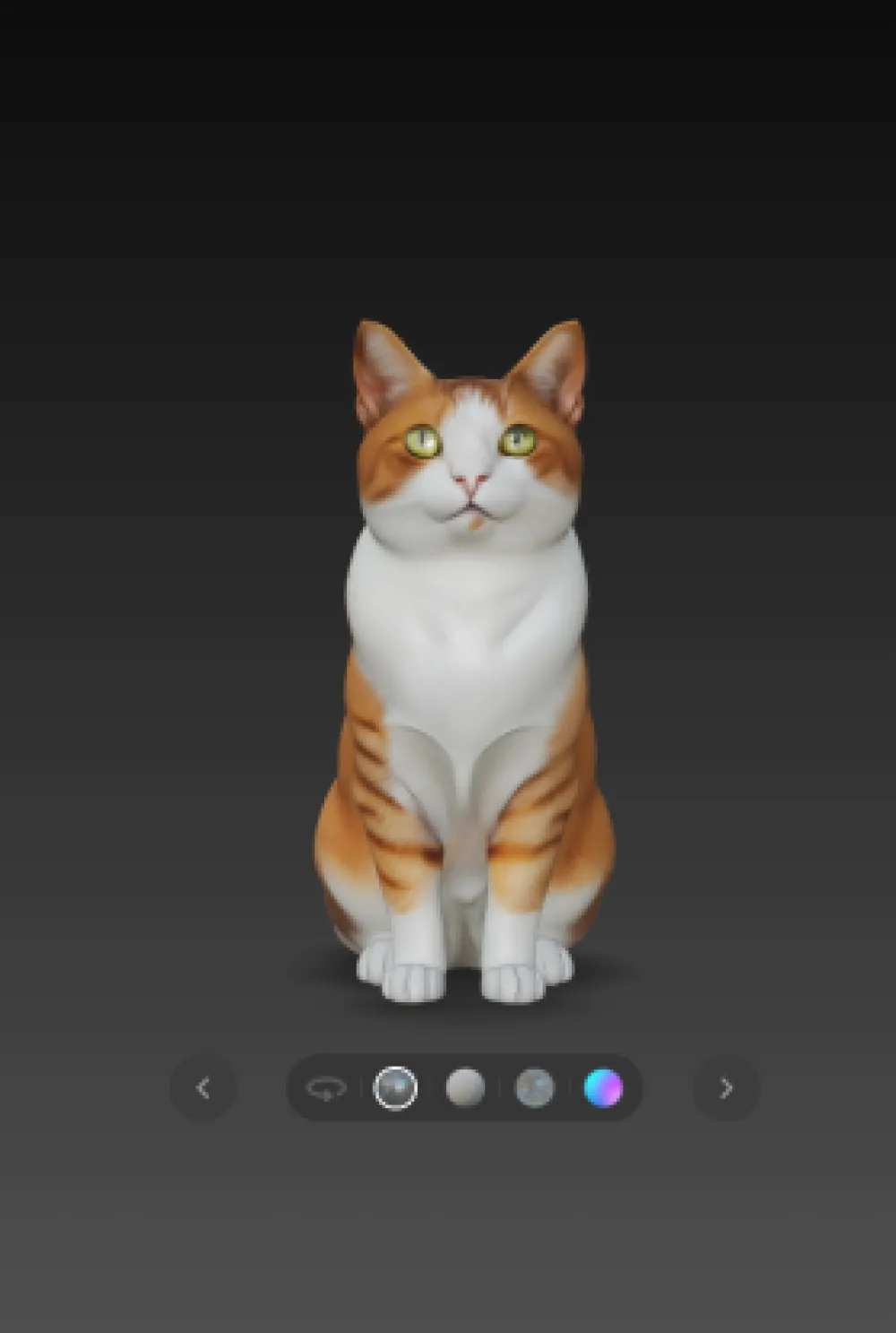
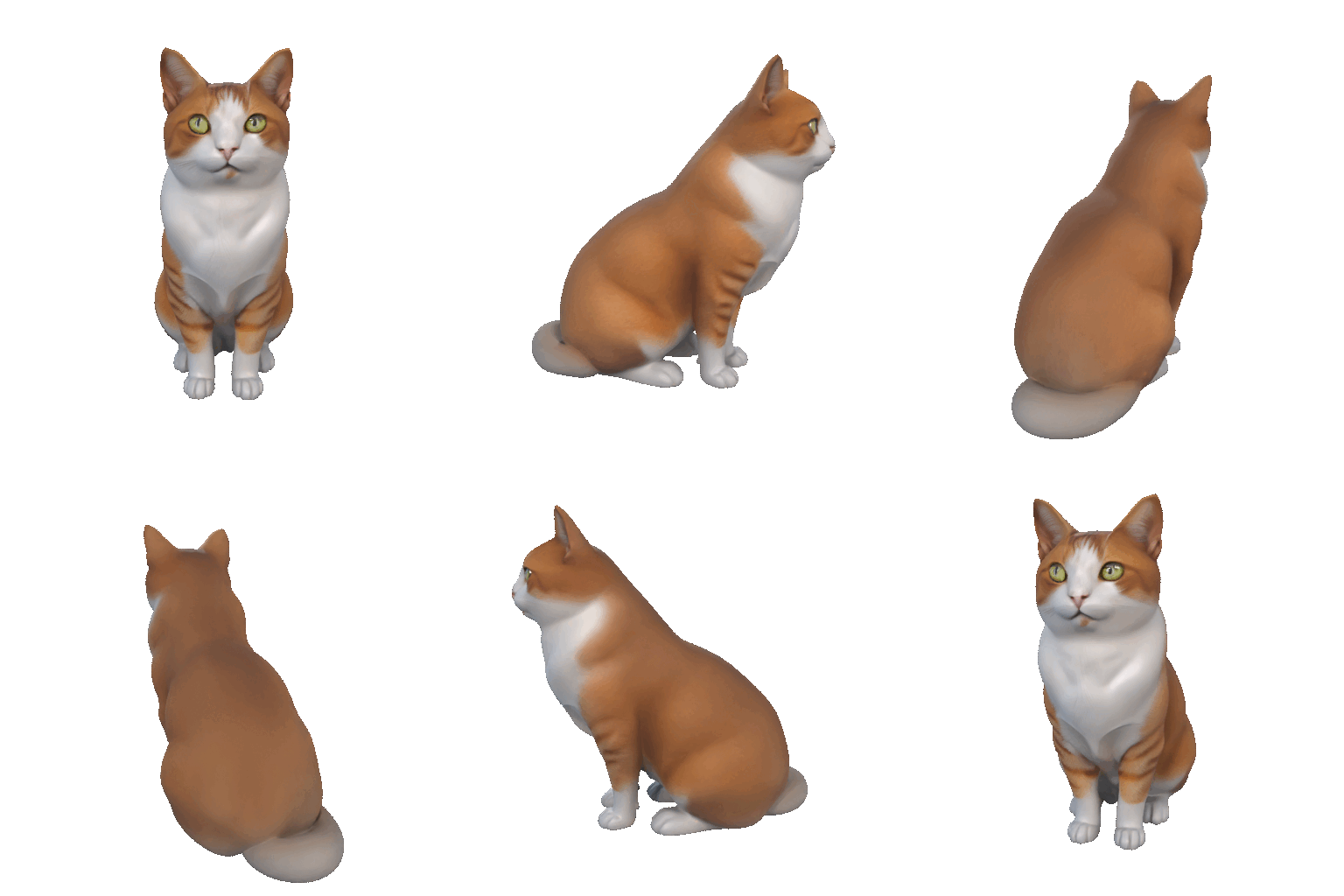
iMini offers a streamlined and efficient workflow for precise 3D asset creation. Start by using Nano Banana to generate a high-quality 3D model image with a clean, single-color background. Then import that image into Hunyuan 3D to transform it into a fully textured, realistic 3D asset. This two-stage process can help explore a concept, but generated details may differ from the original object. Check the back, underside, texture, dimensions and topology before further use.
Nano Banana AI Prompt: Generate a 1/6 scale, commercial-grade 3D figurine of the cat from the uploaded image. The model should be highly realistic, intricately detailed, and professionally sculpted, showcased against a clean, single-color background. No "chassis".
Tips for AI 3D Model Generation
Creating high-quality AI-generated 3D models requires more than just uploading the image or typing text prompts. Here are some tips to help you achieve the most accurate and visually stunning 3D models.
1. Use high-resolution images with a simple and uncluttered background. Avoid clutter or text to help the AI accurately capture what you want.
2. If the workflow supports text, describe the relevant shape and material requirements. More words do not guarantee a more accurate mesh; keep requirements specific and inspect the output.
3. Full-body framing of animals or human to help AI understand your needs. Partial images may result in distorted 3D models.
4. Use consistent views of the same object only where multi-image input is supported. Do not assume the workspace accepts multiple views or that unrelated views will combine correctly.
5. Start with simple objects for the best results.
Applications of 2D-to-3D Conversion with AI
AI-powered 2D-to-3D conversion is transforming how creators, professional designers, or normal users interact with digital content. Whether you’re a game developer, product designer, educator, creators, or 3D printing enthusiasts, AI 3D generation tools make it easier than ever to turn static images into dynamic 3D assets. Here’s how AI 2D-to-3D conversion helps these people.
For Game Developers: Game developers used to spend hours modeling manually, and the AI 2D-to-3D character creation can help indie developers to generate 3D character more quickly with realistic textures and geometry.
For E-commerce Product Designers: Online retailers can use AI 3D conversion to create interactive 3D product reviews from static 2D photos. With 3D product displays, brands can provides customers with a more immersive and engaging shopping experience. 3D product viewing allow customers to gain a clear understanding of size, texture, and design before purchasing, which helps enhance customers’ shopping experience. A 3D product review can help gain higher engagement and conversion rate. Product designers can also save time to create 3D product multi-viewing.
For Educators and Students: AI-driven 3D modeling plays an important role in education and research. It can help teacher convert images or diagrams into 3D models, allowing students to be more immersive and engaging across design and art subjects.
For Artists and 3D creators: AI 2D-to-3D tools empower artists, designers, and 3D creator to bring concept art to life faster than ever, allowing creators to focus on style and storytelling.
For 3D Printing Enthusiasts: AI image-to-3D conversion makes it simple to create 3D models from 2D references. 3D hobbyists and professionals can explore mesh drafts for figurines and prototypes. Check dimensions, manifold geometry, wall thickness and supports in suitable software before printing.
Frequently asked questions
Does a 3D figurine picture contain an editable model?
No. A rendered PNG or JPEG does not contain a rotatable mesh. Use an image-to-3D workflow if you need a 3D asset, then verify the exported geometry.
Can one image recover the exact back of an object?
No. Hidden surfaces are inferred. Supply supported reference views when available and inspect the back and underside after generation.
Is the downloaded asset ready for 3D printing?
Not automatically. Check dimensions, wall thickness, manifold geometry and supports in modeling or slicer software first.